
Your air conditioner works fine. The app that controls it? That’s the problem.
HiSense ships their Wi-Fi modules — AEH-W4B1, AEH-W4E1, AEH-W4F1 — with a cloud dependency baked in. Power, mode, fan speed: all routed through Ayla Networks’ cloud infrastructure before coming back to your own local device. The round-trip latency is annoying. The privacy implications are worse. And when their cloud goes down (it does), you’re back to the physical remote like it’s 2005.
The deiger/AirCon project reverse-engineered the Ayla Networks LAN API and exposed it locally. The result: a Home Assistant add-on that lets you control your AC entirely on your local network, publish state via MQTT, and integrate it with any automation platform. No cloud dependency. No latency spike when Ayla’s CDN hiccups.
This post walks through the full integration — architecture, configuration, MQTT topic structure, and the edge cases that’ll bite you if you’re running multi-AC setups or newer module variants.
The Problem with Cloud-Dependent AC Modules
The HiSense Wi-Fi modules aren’t dumb hardware. They run a full TCP stack and expose a local API — the vendor just doesn’t want you using it. The Ayla Networks integration forces every command through their servers, which means:
- Your automation can’t act on AC state if your WAN is down
- Command latency is 500ms–2s depending on Ayla’s infrastructure load
- You have zero control over what telemetry leaves your network
- If Ayla kills support for your module generation, you’re bricked
The LAN API that deiger reverse-engineered runs on port 8888 of the Wi-Fi module itself. It’s a plain TCP socket with a JSON-based protocol. Once you have the module’s local IP, you don’t need Ayla at all.
flowchart LR
    App["📱 Your Phone App"] -->|WAN| Ayla["Ayla Networks<br/>(cloud)"]
    Ayla -->|"TCP"| HiSense["HiSense Module<br/>AEH-W4B1/W4E1"]
vs. what deiger/AirCon gives you:
flowchart TD
    HA["Home Assistant<br/>(deiger add-on)"] -->|"LAN · TCP :8888"| HiSense["HiSense Module<br/>AEH-W4B1/W4E1"]
    HiSense -->|state response| HA
    HA -->|publish| Broker["MQTT Broker<br/>(Mosquitto/etc)"]
    Broker -->|subscribe| Auto["Automations /<br/>openHAB / Node-RED"]
The difference is structural: you own the entire control path.
Architecture: How the Add-on Works
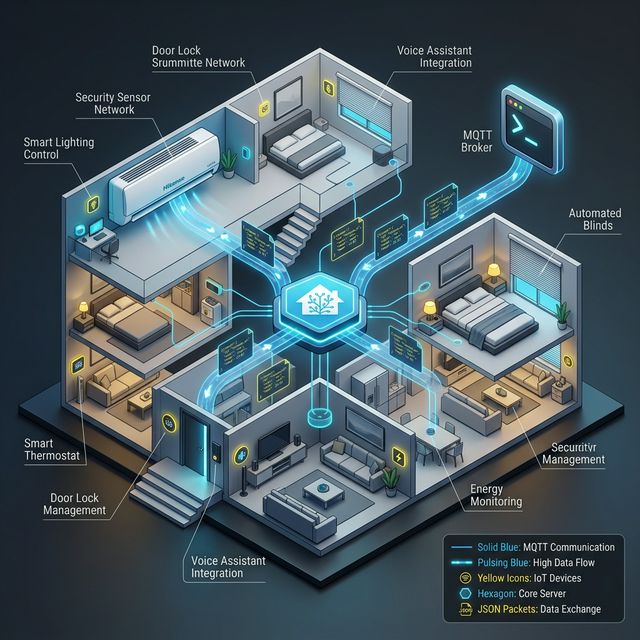
The add-on runs a Python process that polls the AC module’s local API over TCP and bridges the state to MQTT. Here’s the data flow:
flowchart TD
    A[HiSense AC Module<br/>AEH-W4B1/W4E1] -->|TCP :8888<br/>Ayla LAN API| B[deiger/AirCon<br/>Hass.io Add-on]
    B -->|Publish status| C[MQTT Broker<br/>Mosquitto]
    C -->|Subscribe| D[Home Assistant<br/>Automations]
    C -->|Subscribe| E[openHAB / Node-RED]
    D -->|Publish command| C
    C -->|Forward command| B
    B -->|TCP command| A
State machine for the add-on’s connection lifecycle:
stateDiagram-v2
    [*] --> Connecting: Add-on starts
    Connecting --> Polling: TCP handshake OK
    Connecting --> Retry: Connection refused / timeout
    Retry --> Connecting: After backoff
    Polling --> PublishingMQTT: State fetched
    PublishingMQTT --> Polling: Next poll interval
    Polling --> Retry: TCP error / module unreachable
    PublishingMQTT --> CommandReceived: MQTT command topic message
    CommandReceived --> Polling: Command sent to module
The watchdog and “Start on boot” options in the Supervisor exist precisely because the module can become unreachable (firmware update, DHCP lease change, power cycle) and the Python process needs to be restarted rather than hang.
Installation
Prerequisites
- Home Assistant with Supervisor (Hass.io install, not container or core)
- MQTT broker accessible from HA — Mosquitto add-on works fine
- Your AC module’s local IP — set a static DHCP lease in your router for the MAC of the HiSense module before doing anything else. This is the single most common source of breakage.
Adding the Repository
In Home Assistant, go to Settings → Add-ons → Add-on Store, click the three-dot menu, and select Repositories. Add:
https://github.com/deiger/AirCon
The “HiSense Air Conditioner” add-on will appear. Install it.
Configuration
The add-on is typically configured via a JSON file in /config/ (the exact path depends on the add-on version — verify against the add-on’s documentation or its run.sh entry point, as some versions use the Supervisor options API instead). Here’s a production-ready config for a two-AC setup:
{
  "mqtt_host": "192.168.1.10",
  "mqtt_port": 1883,
  "mqtt_client_id": "hisense_ac_bridge",
  "mqtt_user": "hass",
  "mqtt_password": "your_mqtt_password_here",
  "devices": [
    {
      "name": "living_room_ac",
      "ip": "192.168.1.101",
      "port": 8888,
      "lanip_key": null,
      "lanip_key_id": null
    },
    {
      "name": "bedroom_ac",
      "ip": "192.168.1.102",
      "port": 8888,
      "lanip_key": null,
      "lanip_key_id": null
    }
  ]
}
Note the lanip_key and lanip_key_id fields — these are required for AEH-W4E1 modules running newer firmware. On older W4B1 modules they can be left null. lanip_key_id is an integer when populated (not a string) — the Ayla API returns it as a bare JSON number. If you have a W4E1 and commands are silently failing, this is why. Extracting the keys requires MITM-ing the initial cloud pairing flow (more on this below).
After saving config, enable both Start on boot and Watchdog in the add-on Info tab before starting it.
MQTT Topic Structure
The add-on uses the Ayla Networks internal property naming convention for field names. For a device named living_room_ac:
| Direction | Topic | Payload Example |
|---|---|---|
| Publish (status) | hisense/living_room_ac/status | {"t_power":"on","t_work_mode":"cool","t_fan_speed":"auto","t_temp_heatcold":22,"f_temp_in":24} |
| Subscribe (command) | hisense/living_room_ac/command | {"t_power":"on","t_work_mode":"heat","t_temp_heatcold":24} |
| Publish (LWT) | hisense/living_room_ac/availability | online / offline |
The field names follow Ayla’s t_/f_ prefix convention: t_power, t_work_mode, t_fan_speed, t_temp_heatcold (target temperature), f_temp_in (current indoor temperature). Every Jinja template in your HA config must use these exact keys — getting them wrong produces silent failures where the entity shows unknown state.
Verify before you configure: Run
mosquitto_sub -t "hisense/#" -vagainst a live instance and confirm the actual key names from a real payload capture. The add-on version or firmware variant you’re running may differ from what’s documented here.
The Last Will and Testament (LWT) topic is what lets your HA dashboard show “Unavailable” when the module drops off the network instead of silently showing stale state.
Home Assistant MQTT Climate Entity
Add this to your configuration.yaml (or a split config file):
mqtt:
  climate:
    - name: "Living Room AC"
      unique_id: living_room_ac_climate
      availability_topic: "hisense/living_room_ac/availability"
      payload_available: "online"
      payload_not_available: "offline"

      # State topics
      current_temperature_topic: "hisense/living_room_ac/status"
      current_temperature_template: "{{ value_json.f_temp_in }}"

      mode_state_topic: "hisense/living_room_ac/status"
      mode_state_template: |
        {% if value_json.t_power == 'off' %}off
        {% else %}{{ value_json.t_work_mode }}{% endif %}

      temperature_state_topic: "hisense/living_room_ac/status"
      temperature_state_template: "{{ value_json.t_temp_heatcold }}"

      fan_mode_state_topic: "hisense/living_room_ac/status"
      fan_mode_state_template: "{{ value_json.t_fan_speed }}"

      # Command topics
      mode_command_topic: "hisense/living_room_ac/command"
      mode_command_template: |
        {% if value == 'off' %}
        {"t_power": "off"}
        {% else %}
        {"t_power": "on", "t_work_mode": "{{ value }}"}
        {% endif %}

      temperature_command_topic: "hisense/living_room_ac/command"
      temperature_command_template: '{"t_temp_heatcold": {{ value }}}'

      fan_mode_command_topic: "hisense/living_room_ac/command"
      fan_mode_command_template: '{"t_fan_speed": "{{ value }}"}'

      # Capabilities
      modes:
        - "off"
        - "cool"
        - "heat"
        - "fan_only"
        - "dry"
        - "auto"
      fan_modes:
        - "auto"
        - "low"
        - "medium"
        - "high"
      min_temp: 16
      max_temp: 30
      temp_step: 1
      temperature_unit: "C"
Note the use of | (literal block scalar) for multi-line templates — not > (folded scalar). The folded form collapses newlines to spaces and preserves surrounding whitespace, which produces malformed JSON payloads on the command side. Always use | for Jinja templates that emit structured output.
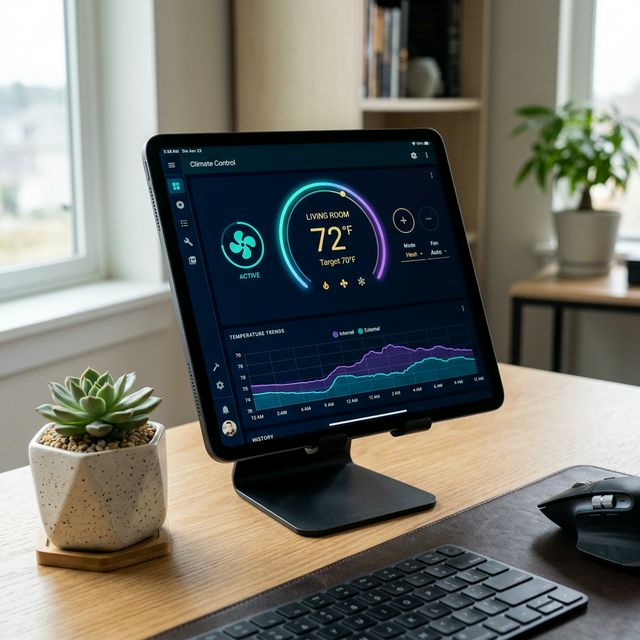
This gives you a full climate card in the UI with mode selection, temperature targeting, and fan speed control.
Extracting LAN Keys for AEH-W4E1 Modules
If you have an AEH-W4E1 (or W4F1) module, you’ll need the lanip_key and lanip_key_id to authenticate local API calls. The module generates these during cloud pairing.
The extraction process: intercept the HTTPS traffic between the HiSense app and Ayla’s API during initial setup.
Method: mitmproxy on your phone’s traffic
# On a Linux machine on the same network
pip install mitmproxy

# Start the proxy (manual mode — your phone will point at this explicitly)
mitmproxy -p 8080 -k

# On Android: Settings → Wi-Fi → long-press your network → Modify Network
# Set proxy to Manual, enter your machine's IP and port 8080
# Then install the mitmproxy cert: browse to http://mitm.it and install the CA
# Open the HiSense app and pair the device
The -k flag disables SSL verification on upstream connections. With your certificate installed on Android, mitmproxy decrypts the TLS traffic in both directions.
Watch for requests to *.aylanetworks.com. The key pair appears in the device registration response:
{
  "lanip_key": "xxxxxxxxxxxxxxxxxxxxxxxxxxxxxxxx",
  "lanip_key_id": 12345
}
Note that lanip_key_id is an integer in the API response — populate it as a bare number in your JSON config, not a quoted string. Copy both values into your device config. This is a one-time operation — the keys are stable for the lifetime of the module.
Automation Examples
Temperature-Based Mode Switching
alias: "AC Auto Mode Based on Weather"
description: "Switch AC to heat/cool based on outdoor temperature sensor"
trigger:
  - platform: numeric_state
    entity_id: sensor.outdoor_temperature
    above: 26
    for: "00:10:00"
  - platform: numeric_state
    entity_id: sensor.outdoor_temperature
    below: 18
    for: "00:10:00"
condition:
  - condition: state
    entity_id: climate.living_room_ac
    state:
      - "cool"
      - "heat"
      - "auto"
action:
  - choose:
      - conditions:
          - condition: numeric_state
            entity_id: sensor.outdoor_temperature
            above: 26
        sequence:
          - action: climate.set_hvac_mode
            target:
              entity_id: climate.living_room_ac
            data:
              hvac_mode: cool
      - conditions:
          - condition: numeric_state
            entity_id: sensor.outdoor_temperature
            below: 18
        sequence:
          - action: climate.set_hvac_mode
            target:
              entity_id: climate.living_room_ac
            data:
              hvac_mode: heat
mode: single
Sleep Schedule
Two separate automations are cleaner than a single automation with a time window condition — the boundary logic is explicit and each trigger does exactly one thing:
alias: "AC Sleep Schedule - On"
trigger:
  - platform: time
    at: "23:00:00"
action:
  - action: climate.set_temperature
    target:
      entity_id: climate.bedroom_ac
    data:
      temperature: 24
      hvac_mode: cool
mode: single
alias: "AC Sleep Schedule - Off"
trigger:
  - platform: time
    at: "07:00:00"
action:
  - action: climate.turn_off
    target:
      entity_id: climate.bedroom_ac
mode: single
Known Compatibility Matrix
Based on community issue reports across the GitHub tracker:
| Module Model | Firmware | Status | Notes |
|---|---|---|---|
| AEH-W4B1 | All | Stable | No key extraction needed |
| AEH-W4E1 | ≤ 2.x | Stable | Key extraction required |
| AEH-W4E1 | 3.x+ | Partial | Some commands fail; open issue |
| AEH-W4F1 | All | Experimental | Community reports mixed results |
| ConnectLife | N/A | Unsupported | Different protocol entirely |
The W4F1 situation is still evolving — there are open GitHub issues tracking protocol differences. If you have a W4F1, check the issues page before assuming the add-on will work out of the box.
Multi-AC Setups: What Actually Goes Wrong
Running two or more ACs is where the configuration friction shows up.
Problem 1: MQTT client ID collision. If you run multiple add-on instances (which you shouldn’t), each needs a unique mqtt_client_id. The default may collide, causing one client to disconnect the other. Use the single add-on instance with multiple entries in the devices array.
Problem 2: Poll interval under load. The add-on polls each device sequentially. With three ACs, you’re tripling the poll cycle time. If your MQTT automations are time-sensitive (sub-second response), this matters. The poll interval isn’t currently configurable per-device — it’s a global setting.
Problem 3: IP address drift. If your AC module gets a new IP after a DHCP lease expiry, the add-on will silently fail to connect. Your HA dashboard will show the last known state forever. The LWT availability topic helps here — if hisense/device/availability goes to offline, an automation can notify you.
alias: "Alert on AC Bridge Offline"
trigger:
  - platform: mqtt
    topic: "hisense/+/availability"
    payload: "offline"
action:
  - action: notify.mobile_app_your_phone
    data:
      message: "AC bridge went offline — check module IP"
      title: "Home Automation Alert"
When to Use This, When to Avoid It
Use it if:
- You have AEH-W4B1 or AEH-W4E1 modules and want local control
- You’re already running Home Assistant with MQTT
- Privacy or WAN-independence matters to you
- You want AC state as part of energy monitoring dashboards
Avoid it if:
- You have ConnectLife-based units — wrong protocol, different project
- You have AEH-W4F1 and need production reliability — wait for the firmware issues to resolve upstream
- You’re on Home Assistant Container/Core without Supervisor — the add-on is Supervisor-specific; you’d need to run the Python script manually as a system service
The honest assessment: This is community-maintained open-source software reverse-engineering a proprietary protocol. It works well for the supported hardware, but “active community engagement” also means you’re joining a community debugging session when you hit edge cases. The codebase is Python, the protocol is documented through issues and PRs, and if you hit a wall, you can read the source.
The trade-off is worth it. Cloud-dependent AC control is a liability. Once you have local MQTT state for your AC, you can build energy monitoring, predictive pre-cooling based on calendar events, and occupancy-based automation that the HiSense app will never support.
Quick Debugging Reference
# Check add-on logs
# Note: the slug depends on your add-on version — verify yours with: ha addons list
ha addons logs local_hisense_aircon

# Watch all MQTT traffic for every hisense device
mosquitto_sub -h 192.168.1.10 -u hass -P password \
  -t "hisense/#" -v

# Publish a test command manually
mosquitto_pub -h 192.168.1.10 -u hass -P password \
  -t "hisense/living_room_ac/command" \
  -m '{"t_power": "on", "t_work_mode": "cool", "t_temp_heatcold": 23}'

# Verify module is reachable on LAN
nc -zv 192.168.1.101 8888
If nc connects but commands don’t work, it’s almost certainly the lanip_key issue on W4E1 modules. If nc doesn’t connect, the module is unreachable — check the IP and your network segmentation (IoT VLAN firewall rules are a common culprit).
The deiger/AirCon project isn’t glamorous software. It’s a practical tool that does one thing well: gets cloud-dependent hardware under local control. For anyone running HiSense AC units with these specific modules, it’s the difference between having a smart home and having a home that’s smart only when Ayla’s servers cooperate.